

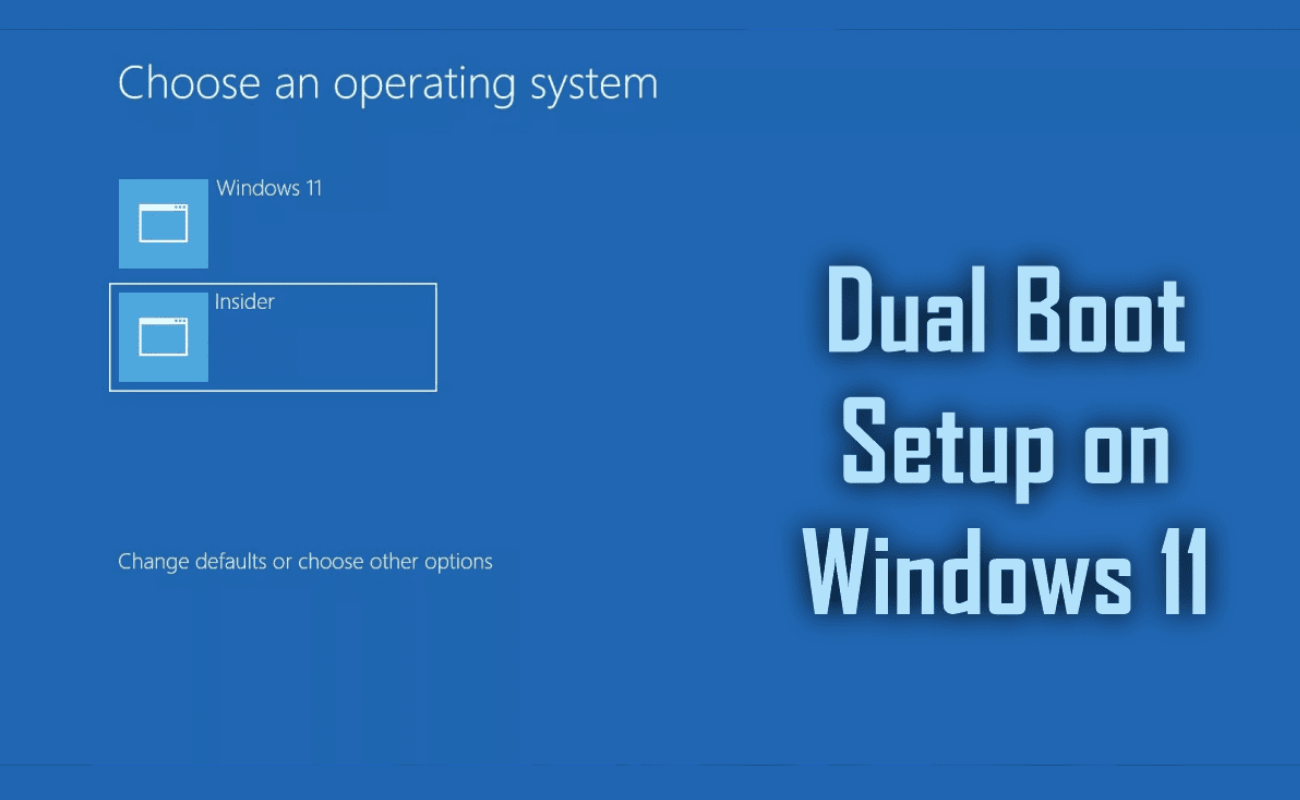
Ever wished to explore a fresh operating system without having to sacrifice the operating system you already use? That’s what dual booting allows you to do. Running two operating systems on a single computer is a practical solution if you are a developer who needs Linux for coding, a student who wants to learn a new OS other than Windows or someone who wants to run both at the same time for increased flexibility.
Fortunately, you don’t have to purchase another machine, or frequently change devices. In this guide, we’ll take you from preparing for dual boot to troubleshooting for both systems so that you can have both running smoothly.
What Is Dual Booting?
Dual booting involves the installation of two operating systems on the same computer with the choice of which system to boot into at start-up. This is commonly done to allow people to run Windows and Linux simultaneously without the need to have two machines. It is a great option for developers, students and those who wish to access a new operating system without sacrificing their main operating system.
Things to Prepare Before You Start
There’s always a lot of work to be done before getting started:
- Back up your data. When you partition and install a new OS, there’s always a risk involved; so make sure to back up your valuable files to an external drive or cloud storage.
- Free up disk space. There should be 30-60GB of unallocated space for the second OS (this depends on what you want to install).
- Make a bootable USB flash drive. Download the ISO of the operating system you are interested in and use a tool such as Rufus or balenaEtcher to create a bootable ISO.
- If you are installing Linux together with Windows, disable Fast Startup and Secure Boot in BIOS/UEFI settings, as these settings can interfere with the installation.
Doing these things in advance will prevent future headaches.
Read More: Activevitalspark com: The Ultimate Guide of This Modern Platform
Step-by-Step: How to Set Up Dual Boot
Step 1: Create a Bootable USB Installer
Download the OS ISO to be installed on the USB flash drive and then burn it to the USB flash drive using Rufus (Windows) or balenaEtcher (most systems). Ensure there is at least 8G of free space.
Step 2: Partition Your Hard Drive
Use the disk management utility that is already included in your operating system to shrink the existing partition(s) and reclaim disk space (for Windows, Disk Management; for Linux, GParted). The space is unallocated and your second OS will reside there. Do not format it yet, the installer will take care of that.
Step 3: Install the Second OS
Reboot your computer and boot from the USB drive (may need to adjust the boot sequence in the BIOS/UEFI configuration). Follow the instructions that are on the laptop, and when you’re asked where to install, choose the unallocated space you set aside. Do not choose any of the existing operating systems’ partitions, as this will result in loss of data.
After partitioning, you’ll need to install your second OS and have the installer install the boot files for you.
Step 4: Set Up the Boot Manager
Most installers (including Ubuntu’s) install a boot manager (such as GRUB) as part of the process, allowing you to select an OS each time you boot the computer. You might have to use a boot repair tool or make an entry in your BIOS/UEFI settings.
Common Issues & Troubleshooting Tips
Boot menu not appearing: Reboot and verify if the boot sequence order is correct in your BIOS/UEFI, or boot repair utility, such as Boot-Repair (for Linux systems).
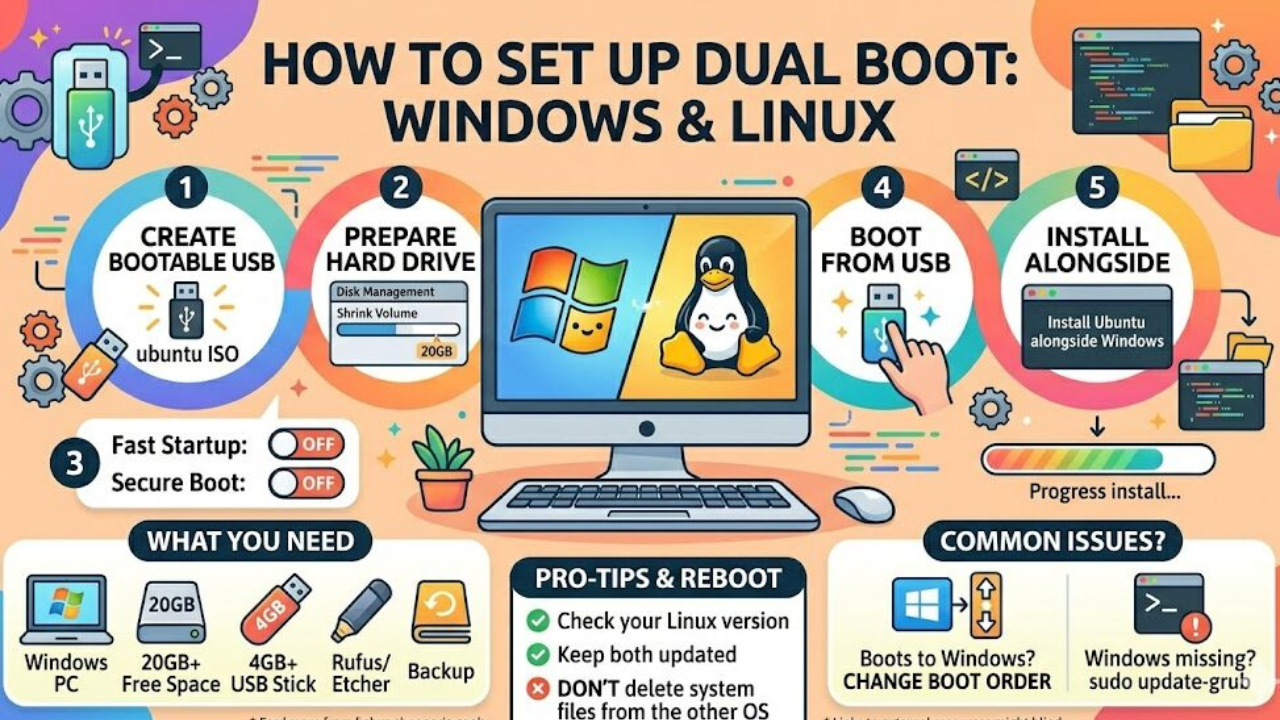
- OS not detected after installation: This is typically when the boot manager has not been installed properly. Often, reinstalling GRUB from a live USB session will help fix this.
- Boot directly into one OS: If Fast Startup is used on Windows, then check if it is turned on, as it may prevent you from seeing the boot menu.
The majority of problems are caused by BIOS settings or incomplete installations, so make sure that you go through all the steps.
Final Word
Although setting up dual booting can be a daunting task at first, it’s broken into these steps that it’s not too difficult even for a beginner. Having your primary drive backed up, a little bit of patience, and careful partitioning, and you’ll have two operating systems to choose from. If you’re not sure about attempting this on your main drive, you might try with a spare laptop or an old hard drive.
FAQs
1.Is it possible to run Windows and Linux on the same hard disk?
Yes, if you create different partitions during installation for each OS.
2.Will dual booting affect the speed of my computer?
No, Only one OS runs at a time so there is no impact on performance.
3.Is it possible to uninstall one OS later without re-installing all the other OS’s?
Yes, but you’ll have to remove its partition and rebuild the bootloader afterwards.
4.Is it necessary to have a dual boot hard drive?
Not always, partitions can be created on a single drive, but it is easier to have a separate drive.
5.Will dual booting affect my data?
If backups are made first, this shouldn’t be too problematic as it is a partition operation.
Read More: Foxfiny Com: What It Actually Is and Whether It’s Worth Your Time
